Devices
Design a one-cable desk around the screens and drives it has to carry
Map your dock’s host connection, display modes, charging and shared bandwidth before choosing a one-cable desk setup.
The desk at home has a monitor, a wired network, speakers, a keyboard and a solid-state drive. You want to connect a laptop to all of them with one cable. A hub in a shop window offers every socket in the right shape. The hard part is deciding whether those sockets can do the required work at the same time. One cable is a practical requirement for a person. Inside the setup it is several channels competing over a path.
Start with the exact laptop and monitor combination. Then decide what has to work together. A person copying photos while using a high-resolution display has a different problem from someone who occasionally plugs in a memory stick. A dock that would be overkill for one desk can be marginal at the next. The useful comparison starts by describing a workday.
Write the device list from left to right
List the laptop model and each candidate host port, then the dock and its intended host cable. Add each display, its connection and the resolution and refresh rate you intend to use. Finish with the network, storage and other accessories. Put power on the same drawing. Mark where the wall adapter connects and how much the dock supplies to the laptop. The arrows look simple. Confirming what each one carries is the work.
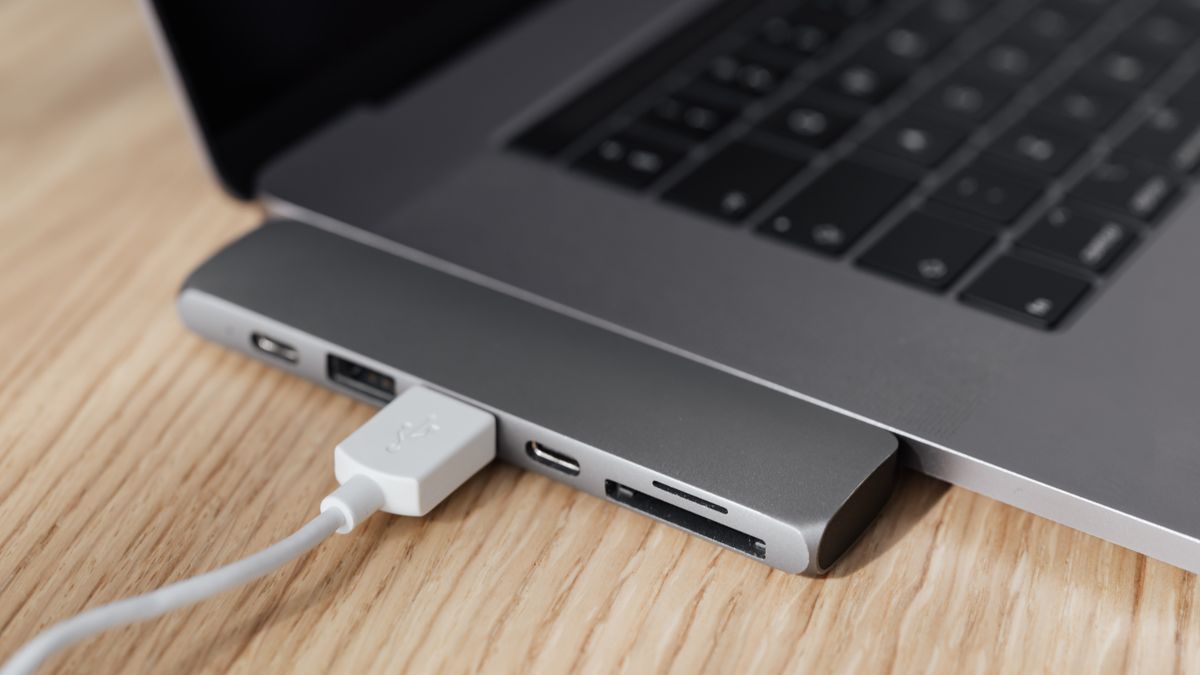
USB-C describes the connector shape. A USB-C host port may deliver USB data and offer optional video or charging. Some ports support USB4 or a version of Thunderbolt, with capabilities that depend on the product. Read the official technical guide for your laptop and your dock. A system may limit display combinations even when the dock has more video sockets, especially across different operating systems. The monitor ports shown in a picture are the beginning of the compatibility check.
A useful table might list one display at 3840 by 2160 and sixty hertz, a fast external drive, a wired gigabit link and a keyboard. The keyboard has modest bandwidth needs. The drive is the reason to study the host connection. Add a webcam if it must be active while the drive is used. Write down whether the drive will contain unique or time-sensitive work. Stability can be more important than a peak speed result.
Make the display requirements specific
Distinguish between showing the same image on two monitors and extending the desktop across them. A dock’s specification may include both arrangements but qualify them differently. Some designs distribute display streams using features the laptop and operating system must support. Some handle video through software that compresses or delivers the image through another path. Match the dock’s advertised mode to your operating system and computer. Look for documented combinations and any needed software permissions.
Read resolution and refresh rate as a pair. A setup supporting one screen at high resolution with a low refresh rate may be useful for a reference panel but less pleasant for an active editing screen. A high-resolution or high-refresh signal can require more of the host link, cable and display inputs. If the manufacturer offers a matrix of combinations, find your target and note any limitations on simultaneously active USB ports. A clean LCD demonstration at a trade show tells you little about what that matrix permits.
Inspect the monitor end as well. A display can have several inputs with different supported modes. The two sockets using the same connector might differ in how they are configured. Use the monitor menu to verify the incoming resolution and refresh rate alongside the laptop’s report. If it looks unexpectedly soft, check scale, native resolution and the supported colour output. Compare a direct connection before attributing the issue to the panel.
Understand what travels together
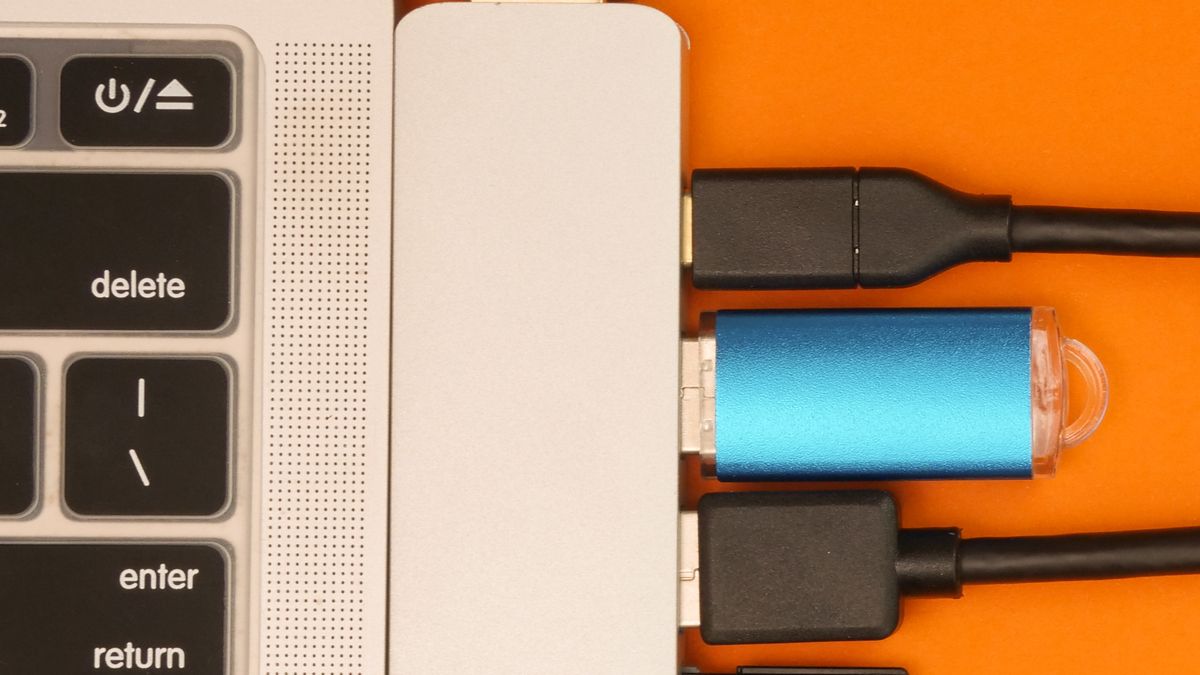
A dock receives a connection with finite capacity. A video signal, storage transfers and other device traffic can share portions of its available bandwidth, depending on the arrangement. More socket labels do not create more capacity on the path to the laptop. Some docking modes reserve lanes for display traffic and leave a lower rate for USB. Another configuration may provide substantially more room for concurrent use. Check the combination you need, not merely the highest speed any individual port supports.
Test a known large transfer while the display and network are in their normal states. Use a disposable test file and a drive you understand. Keep background sync activity steady. Compare with a direct connection to establish a rough reference for the same hardware. Local disk speed, file sizes, caching and the network can change the reading, so the test aims to reveal a material slowdown or loss of connection rather than establish a universal benchmark.
Separate stability and speed. A modest slowdown during a long copy might be acceptable. A screen going black repeatedly or a drive disconnecting under load deserves a more careful look. Save work and eject storage properly before changing cables. Move one connection at a time and check the manufacturer’s documented firmware and driver updates. Some faults appear when a host cable is longer than intended or when a cable supports charging without the data mode the dock expects.
Count host charging after dock overhead
Some compact hubs receive power from the laptop. Others pass USB Power Delivery from an attached adapter to the host after reserving some power for their own use. A dock with a dedicated adapter may specify the host output directly. In each design, the relevant laptop figure is the power delivered at the host connector. The input rating printed on the power brick can be higher than that figure. Match the laptop’s documented power needs to the intended arrangement.
Try an ordinary high-load period, including the monitor brightness and peripherals you expect to use. Compare battery level and any slow-charger message before and after the test. A portable computer can accept enough power for ordinary office work and draw from its own battery during a longer export. That may be acceptable for occasional work if it is planned. A workstation that must render all afternoon should have enough margin in the supplied power or retain its separate manufacturer-approved power connection.
Power order can matter. Some docks are ready when the laptop connects. Some displays or USB devices may want more time after the wall supply is interrupted. Follow the manufacturer's restart sequence when problems occur. Keep the plug and cable routed so they do not put tension on the laptop port. A dock tucked under a desk should still be reachable and ventilated. Reliability includes being able to disconnect safely and recover when the room moves around it.
If you present from the desk, test which screen a newly opened slideshow selects. A successful monitor connection alone does not establish that the application will pick it.
Design wake-up and unplugging into the workday
Connect the normal desk and allow the laptop to sleep in its supported mode. Then wake it, unlock it and check whether sound, network and monitor arrangements return. Open an app on a second display and see where it goes after you unplug and reconnect. A polished spec sheet often omits this daily choreography. The process matters when you move between several meetings and your desk.
Check external keyboard and mouse wake only if you need it and the platform supports the intended sleep states. If you work with the lid closed, verify the laptop’s operating manual for external-display operation and ordinary ventilation. On return to the desk, do you need to open the lid to turn the computer on? Does the external monitor select the intended input? These tiny details are easy to verify and frustrating to discover after installing permanent cable channels.
Include an unplugging routine. Eject removable drives when appropriate, pause any long file transfers and know whether unplugging will switch the system to battery. Network calls can change routes when the wired connection disappears. Check that the wireless network is available before relying on a seamless move. Keep a direct charger and simple display cable nearby if those give you a workable rescue path when the dock is temporarily unavailable.
Shop for the busiest hour
Compare models with the busiest hour you expect, not the average minute of an empty desktop. A modest dock using one external screen and a few low-bandwidth peripherals may be more dependable and less costly than a complex two-screen setup. A fast local drive or demanding display arrangement can justify a more capable host link. If your laptop is the bottleneck, a different dock cannot give its port capabilities it never supported.
Once the setup works, label the host cable and each display end and keep a brief note of the verified combination. Include the laptop port, dock and monitor models and the modes you confirmed. When one display is replaced, you can test the changed part against a known baseline. When a visiting laptop needs a connection, the record helps you distinguish compatibility from a physical fault.
Put the dock in its permanent position only after regular work confirms it. Then check it again when the cables are routed, because a strained connection or a substitute lead can change a good bench result. The achievement is the familiar morning sequence. Connect one lead, see the right screen, find the expected network and start working without thinking about the path underneath.