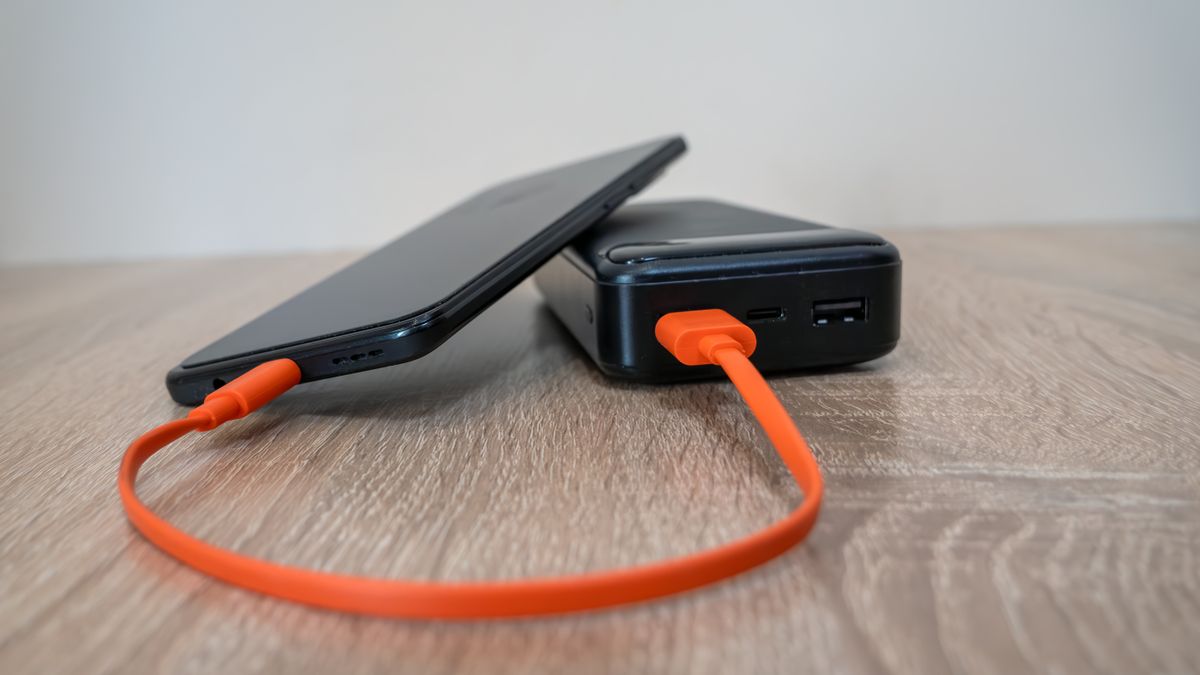
Devices
The 2026 USB-C laptop label is useful if you read both numbers
Europe’s common charger rules now cover laptops. Read the power label, understand USB Power Delivery and test a one-charger travel setup.
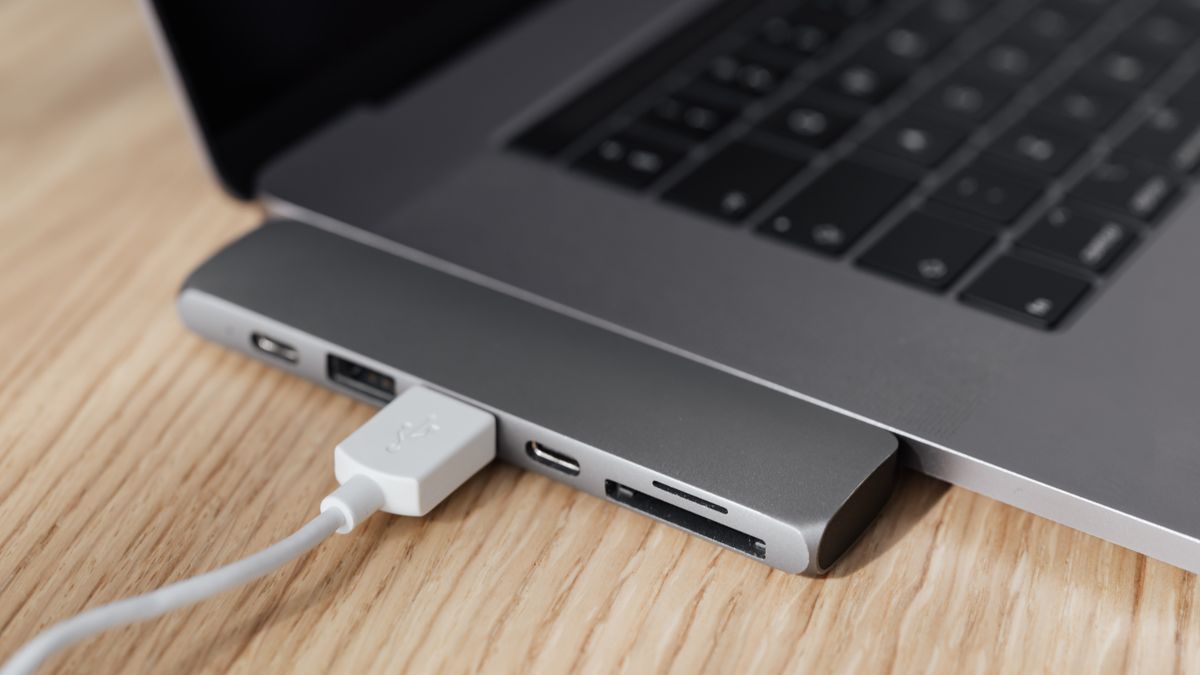
The charger in your bag fits your next laptop. That is the easiest part of the buying decision. The harder questions are whether it will keep the laptop charged while you edit a video, whether the same cable can drive a display, and what happens when you plug a phone into the other port on the charger. A USB-C connector leaves all three questions open.
In the European Union, the common charging requirements began to apply to laptops within scope on April 28, 2026. A charging label can now help buyers match an existing adapter to a new machine. Think of it as a short specification for wired power. Keep the laptop's port diagram and the charger’s own output chart nearby, because each supplies a different part of the answer.
Start at the laptop box
The European Commission describes two charger power figures for covered radio equipment. The lower bound represents the minimum power required to charge the device. The upper bound represents the power necessary to reach its maximum charging speed. The label also identifies USB Power Delivery support where applicable. A separate pictogram addresses whether a charger comes in the box. A bare laptop and an incompatible brick can still cost more than a complete bundle, so add the replacement adapter to the price comparison when necessary.
Take a hypothetical notebook labelled 45–65 W. A compatible 65 W adapter is a sensible first candidate. The 45 W figure is an invitation to check how you work, especially if charging speed matters. The system uses some incoming power to run its screen, processor, radios, fans and connected accessories. The battery receives what the laptop can allocate after its other demands are met. A machine can therefore charge promptly while asleep, charge slowly during a call, and lose a little battery while rendering on the same adapter. Charging also tends to slow near the top of the battery's range.
The figures belong to a specific model and configuration. Find the charging label for the exact laptop in your cart. A second machine with the same family name can pair a more demanding processor or graphics chip with a larger adapter. If a high-performance model lists a separate power supply, check what the manufacturer permits under USB-C input and at full performance. Write down the distinction before assuming you can leave its larger charger at home.
Follow the negotiated path
USB Power Delivery, commonly shortened to USB PD, allows compatible devices to agree on a power supply arrangement. The brick advertises available power options and the receiving device requests one it can use. Advertised maximum output only helps if the laptop and charger share a suitable option and the cable supports it. With some adapters the list is printed in tiny type after the word “Output.” A photo of the label lets you enlarge it. Read the USB-C port line and compare it with the laptop's technical documentation, especially when a multiport model prints one set of numbers for each port.
The relationship among voltage, current and power is simple. Multiply volts by amperes. A 20 V profile able to supply 3 A represents up to 60 W. A laptop can draw less according to its battery management and current workload. That matters when a product description calls an adapter 65 W but describes the sum of two outputs. Under that charger’s published two-port allocation, the laptop port might fall to 45 W once the phone joins it. A two-port brick should have a vendor chart showing the single-port and shared configurations. Consult the combination you actually plan to use.
Look for reputable cables with power markings or a clear product specification. Older cables may lack familiar current markings, and a cable that came with a small accessory might be designed for much lower power. If a laptop needs more than 60 W over a single cable, choose one rated to handle the required current and PD range. Keep the cable bundled with a high-power adapter near the adapter, or add a small reusable tag. Otherwise the two nearly identical leads at the bottom of your travel bag become a fault-finding exercise every time you pack.
A charging cable is one purchase, a dock cable is another
A cable's power rating gives little information about its data speed. An inexpensive power cable can be the right choice for a bedside charger. A dock cable can also carry display traffic and fast transfers to a drive. For that job, check the requirements on both sides of the dock, including the intended screen resolution and refresh rate. Verify the relevant host USB-C port on the laptop. Two ports that look identical can have different display or charging support, especially on older models. A product diagram is usually easier to trust than a listing title that strings multiple standard names together.
Draw the two chains separately. The first is wall adapter to cable to laptop. The second is laptop to host cable to dock to screen or storage. A powered dock joins the chains, but some of its incoming power stays with the dock and its accessories. The useful number in that situation is the documented power delivery to the host. If an adapter provides 100 W to a dock and the dock specifies up to 85 W to the host, compare 85 W with the laptop. Leave room for the actual behaviour of the combination as well as for the arithmetic.
A useful troubleshooting rule is to remove the dock before changing anything else. Unplug it safely, connect the known compatible charger directly to the laptop, and verify that the system recognises power. Then reintroduce the dock with its intended host cable. Verify charging, display stability and storage access together. A fault that appears only with one screen configuration might call for a different cable or port. A fault that persists when charging directly sends you back to the adapter, the lead or the laptop's charging settings.
Give your travel kit a dress rehearsal
Use a battery level well below its configured charge limit. At a desk, connect your proposed travel charger directly to the correct port. Check the operating system for the charging status and any warning about available power. Make a note of the battery percentage and do the work you expect to do on the road for about half an hour. Include your usual brightness, the browser tabs you keep open and a video call or export if either is typical. Compare the battery level at the end. The result is specific to this workload and this set of accessories, which is exactly why it is more useful than a generic charge-time promise.
Then connect the phone or headphones to the charger’s other port. Some designs renegotiate on insertion. Record whether the laptop briefly reports a power change and whether the final status remains acceptable. If you plan to use a monitor as a power source, test the monitor and its cable in a separate run. A successful direct bench test tells you how to recover if a meeting room dock fails, while a successful shared-port test tells you how confidently you can charge two things from one hotel outlet.
Keep the record modest. A few lines with the laptop model, charger model, single-port or shared-port mode, and the cable label are enough. Put the tested power cable in the same pocket each time. If a work laptop has demanding tasks only at your desk, the everyday decision may be to keep its full-size charger there and travel with the smaller verified kit. A lighter charger is useful precisely when its limits are familiar.
What to keep and what to replace
Start with the most dependable adapter you already own. A new laptop’s common charging label can extend the life of that adapter even when the new model is sold without one. An adapter from a previous notebook may have a suitable profile and plenty of margin. A phone charger may make sense as a slow emergency option if the laptop accepts it. A lead with worn insulation or a loose plug has earned retirement regardless of its printed wattage. Stop using equipment that behaves erratically or shows damage, and consult the manufacturer before substituting an unknown adapter.
There is little reason to buy a whole new collection at once. Make the main adapter and cable pair a reliable baseline. Upgrade a dock lead only if your real work requires more display bandwidth, host charging or data performance. If you do shop for both a hub and a charger, note whether the hub includes a power supply and whether the laptop warranty specifies a supported power arrangement. These lines can matter more than the number of ports on a product photo.
Consider the chores around the edges of your trip. A short lead takes less space at a café table, while a longer supported lead can reach the wall behind a hotel bed. A large multiport adapter may make neighbouring sockets hard to use. An adapter that stays plugged in at work should be easy to identify after someone borrows it. Those details don't replace a safe power rating. They decide whether a technically suitable kit gets used.
The new label earns its keep when you can answer three questions without guessing. You know what the laptop requests, what the chosen adapter can supply in its intended configuration, and what the cable can carry. With those answers in hand, the crowded travel bag stops being an argument for another charger and starts being a reason to bring the right one.