Devices
Choose an e-paper reader for the documents you keep avoiding
Compare reflowable books, fixed-page PDFs, annotations and lighting on an e-paper screen before settling on a size.
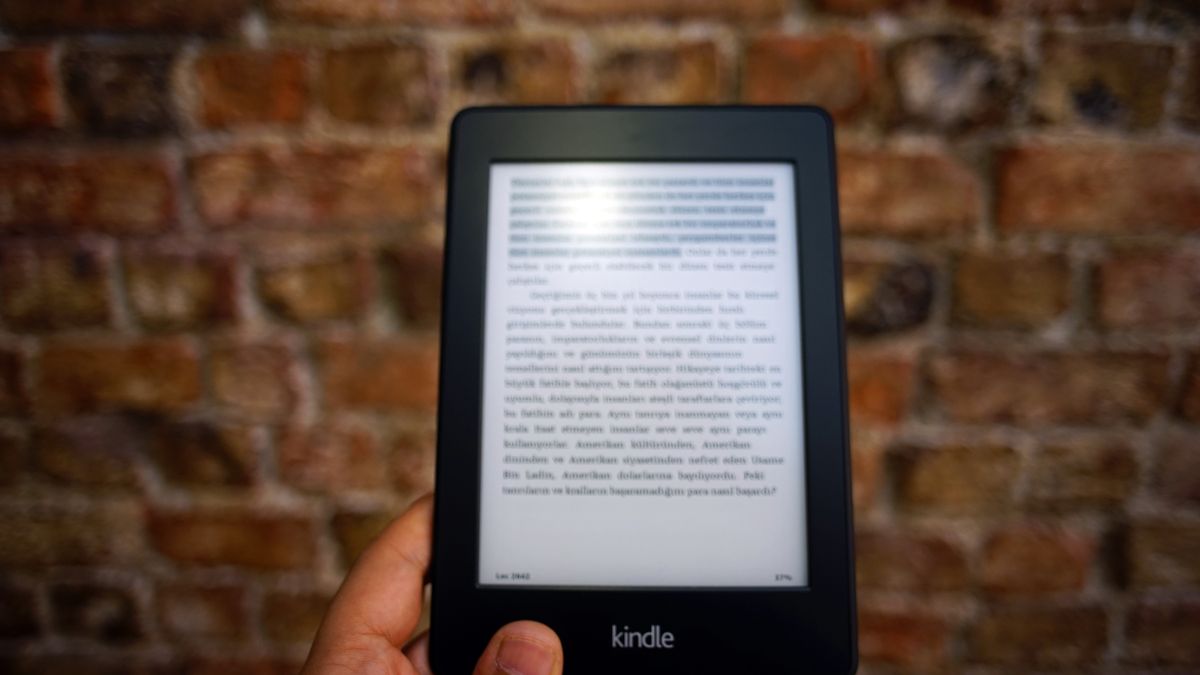
A six-inch reader can make a long novel easy to carry. The same display can turn a two-column paper into a sequence of drags and zooms. A larger device shows more of the paper and takes more room on a crowded train. The best comparison begins by putting one of your neglected documents on the screen, not by counting features on a specification sheet.
E-paper does well at displaying a static page in available light. Many devices add a front light for reading in dim conditions. Some also accept a pen, use a colour filter or run several reading applications. The practical choice depends on page shape, lighting, response time and where you want your notes to end up. A tiny test library can reveal these demands in the time it takes to finish a chapter.
Bring three troublesome items
Start with a normal book in a supported reflowable format. A reflowable document permits the reading system to wrap the text to fit the screen. Change the font size and line spacing. Read several pages, search for a phrase and return to the original passage. Make a highlight and find it again from the library. This is a more complete demonstration than turning the first page of a preloaded book.
Second, pick something fixed in shape, perhaps a technical manual with wide tables and small captions. A PDF often represents a designed page with fixed positions. Some devices can crop margins, rearrange columns or offer reflow for certain PDFs. The results vary by file. A scanned document may contain only an image unless it has a searchable text layer. Test the table you actually need to read, and check whether a crop obscures page numbers or references you depend on.
Third, use a document you want to mark. A recipe, course chapter or sketch can show whether handwriting starts immediately and can be edited without frustration. Open the result on the other computer where you do your work. If export produces a flattened copy, check whether the visible annotations are sufficient for your process. If you need searchable notes or retrievable highlights, perform that export and actually search the result. A writing surface can feel excellent while making the next step awkward.
Page size can change the way you read
A compact reader is well suited to a reflowable novel because lines can be short and the device usually stays manageable with one hand. It asks less room from a bag. A larger screen can hold more of a textbook page at one zoom level. Test the text from a relaxed reading distance. A screen capable of rendering a whole page can still need enlargement for a comfortable font size or for a dense diagram. Display size only has meaning in relation to the source page.
Try the device in landscape if supported. Turning a wide table may be enough to see all of its columns. For a technical paper, a column-by-column view can make the text readable yet break references to figures. Find the shortest route between the line and the figure it discusses. When a page needs repeated zoom and pan, count how often you lose your position. A paper manual on a table or a conventional tablet may take less work for heavily designed documents.
Check weight and balance after several pages. A device with a broad edge gives one hand a place to grip without covering the page. A cover can change the total weight and where the balance falls. If you normally read reclining or standing, try a plausible version of that posture. For a large device, review whether a desk stand helps. A screen size you enjoy for ten minutes at a shop counter can feel different at the end of an hour.
Observe refresh instead of chasing a single response figure
Many e-paper devices provide modes that trade refresh speed against visual quality. A full page update can flash briefly to clear earlier content. Partial updates are often quicker and can leave faint traces behind. Look at a light background after a dense drawing or a photograph. Then return to a page of prose. The residue might be invisible during reading and distracting in a work pattern that repeatedly switches between screens.
Turn pages quickly, then use the keyboard, dictionary or contents menu. You will see how different kinds of interaction are treated. Scrolling a large document continuously is a different task from reading pages. Some apps draw their interface in ways that suit an LCD more than an e-paper display. Test the specific app, not a system's own home page. A smooth demonstration shows what the device can do in one mode with one application.
For a pen device, write a small note near an edge, erase one letter and use the lasso if it exists. Hovering drawers, shortcut buttons and layers have different value depending on how you think on a page. Someone sketching diagrams may need quick selection. A student who writes margin notes may need a reliable export. Try the simplest complete job and see whether the interface keeps drawing attention away from the subject.
Look at the actual lighting
An e-paper panel reflects available light. In bright conditions that can make a crisp surface easy to read. A front light directs illumination across the panel when the room is dark. Look at a white page at minimum comfortable brightness, then a larger textured area. Notice uneven edges, tap readability and visible colour tint. Test in at least two kinds of light if you can. Reading under a desk lamp uses a different balance from reading beside a sleeping person.
A colour e-paper option can be helpful for highlighting and following a map legend. Saturation and fine text appearance vary with panel and lighting, and a photograph can look more subdued than it does on an LCD. Use an actual document that assigns meaning to colour. If two chart colours are hard to distinguish, check whether labels or patterns carry the information too. The actual question is whether you can see what the page asks you to see.
Think about the way glare moves. A desk lamp can reflect off a screen protector or a smooth cover, while overhead lighting may be less troublesome with a different reading angle. Test on a train or near a window during a return period if those settings matter and the terms permit it. You do not need a three-dimensional chart of every lighting condition. One representative comfortable indoor setting and one awkward setting usually show the trade-off.
Read the library and export rules closely
Confirm that books from the services you use can be opened under their existing terms and protections. A device supporting a file extension does not establish that it supports a specific lending or purchasing service. Check account and regional requirements for library loans. Import a sample file you have permission to use and return to it offline. That verifies more of the sequence than a compatibility list can show.
Naming conventions and organisation also matter. Does the reader preserve document titles, series information and bookmarks? Can you remove a local copy without losing the original in your storage? If handwritten notes sync, see where they are stored and which devices can open them. If an account is required, check what reading and exporting work during a service interruption. A long battery life helps most when the files are already accessible.
Treat the device's own catalogue as one source among others. Before moving a large collection, try a handful of ordinary titles, a course pack and one scanned file. Keep the master files and include any exported notes in a normal backup. A reader that works beautifully with one shop may still need a separate method for documents from work or a library. That arrangement is fine when it is deliberate and easy to remember.
If you read across two devices, open a borrowed book offline on both, bookmark a page and reconnect one of them. See whether the bookmark follows you and whether the service still recognises the loan.
Choose by the most common inconvenience
Write down which reading you avoid today. A commuter leaving novels at home may gain most from a compact reader with good one-handed controls. Someone postponing a diagram-heavy course pack probably needs a bigger usable page or a conventional tablet with fast zoom. A reader marking drafts could prioritise export and a dependable pen response. No single panel wins all three schedules. Use the price difference to decide how often the advantage will matter.
Finish with a short check of the ordinary details. Try waking the reader from its cover, changing brightness midway through a page and finding a document by title. Check that you can choose a comfortable typeface and what the keyboard does with the characters you need. Assess how the charging port lies when a cable is attached. These details tend to be invisible in a benchmark and present every day.
The right reader can disappear behind the work. You pick up a file, read its footnote, make a note and return to the paragraph. If a comparison leaves you doing those things with less fuss than before, it has answered the device question. Take the three files along and let the trial settle the rest.